
1. What is EventPorto for?
The EventPorto Android app supports users during events that are on the move. The app combines the following in a single map screen:
- your own GPS position;
- positions of other EventPorto participants and vehicles;
- routes, route points, tracks and waypoints;
- an operational table;
- sharing your own position;
- group messages;
- offline maps.
The app is designed to remain usable when a mobile internet connection is temporarily unavailable. Maps, routes, positions and table data that have already been loaded remain available as much as possible.
2. First use
2.1 Requirements
To use the app, you need:
- an Android device;
- an EventPorto account;
- the username and password provided by your administrator;
- location permission when you want to use your own GPS position or personal tracking.
Depending on the Android version, the app may also request permission to show notifications when a feature requires it.
2.2 Signing in
Open Settings at the bottom of the main screen.
Enter:
- Server address;
- Username;
- Password.
After a successful setup, the app remembers the required settings and attempts to reconnect automatically the next time it starts.
You can temporarily show or hide the password using the eye icon.
The administrator determines which participants, vehicles, data and features are available to your account. It is therefore normal for two users not to see exactly the same information in the app.
3. Main screen
After the app starts, the map is the central screen.
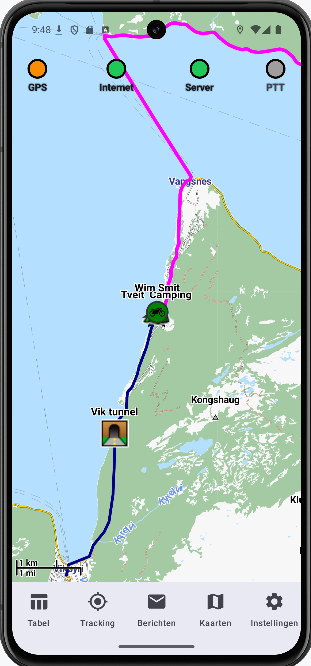
The navigation bar at the bottom contains the main sections:
- Table;
- Tracking;
- Messages;
- Maps;
- Settings.
When you open a section, it appears as a large panel over the map. The panel remains fully open until you close it or go back.
Status indicators above the map show at a glance whether the main features and connections are active.
4. Using the map
4.1 Panning and zooming
The map works like a regular mobile map:
- drag with one finger to move the map;
- use two fingers to zoom in and out.
When automatic GPS follow is enabled, the map may return to your own position.
4.2 Your own GPS position
Your own GPS position is shown on the map with a separate GPS symbol.
Your own GPS position continues to update even while you are following another participant or vehicle.
4.3 Automatic GPS follow
Under Maps → Map display → Automatically follow GPS, you can choose whether the map remains centred on your own GPS position.
When this feature is enabled, the map follows your movement.
4.4 Map orientation
Under Maps → Map display → Map orientation, the following options are available:
- North up;
- Course up;
- Automatic.
In a course-oriented view, the map can rotate with your direction of travel.
4.5 Position of your own GPS marker
Under Own GPS position, you can choose:
- Centre;
- Bottom;
- Automatic.
The Bottom setting shows more of the map ahead of your direction of travel while you are moving.
5. Participants and vehicles on the map
EventPorto shows the participants and vehicles that your account is permitted to access.
A symbol can represent a person, motorcycle, car, bicycle, boat, bus, helicopter or another type of vehicle.
The administrator configures which symbol is used.
Depending on your permissions, the name, initials and/or operational status may be displayed above a symbol.
5.1 Opening information
Tap a symbol to open its information popup.
The information shown depends on your permissions and on the data that is actually available. It may include:
- name or initials;
- telephone number;
- speed;
- altitude;
- battery status;
- time since the most recent GPS update.
Information that you are not permitted to view is not displayed.
5.2 Telephone number
If you have permission to view the telephone number, it may be selectable in the popup. Android then opens the phone function with that number.
5.3 Changing the operational status
If you have the required permission, you can change the operational EventPorto status from the popup.
Examples of such a status are On the way, Post 3 or Available.
The feature is only shown when it is available to your account.
6. Follow me — following a participant or vehicle
When this feature is available to your account, you can select a participant or vehicle as the follow target from its popup.
While Follow me is active:
- the map centres on the selected follow target;
- the followed symbol has a red ring;
- your own GPS symbol remains visible and active;
- your own GPS does not take back control of the map centre while Follow me is active.
Only one follow target can be active at a time.
Selecting a different target switches the follow target. Selecting the same target again turns Follow me off.
Follow me stops automatically when the followed object is no longer usable or available. The normal GPS follow setting is then restored.
7. Table
Open Table from the bottom navigation bar.
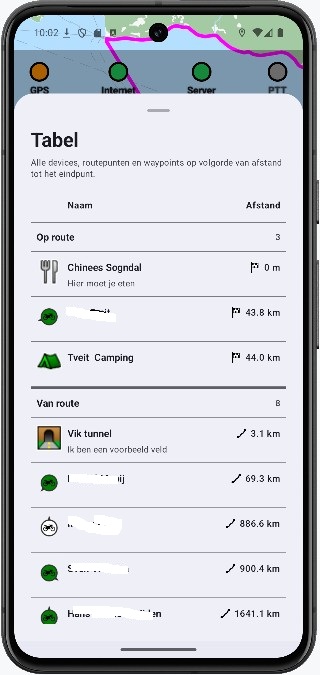
The operational table combines participants and vehicles, route points and waypoints.
Where possible, the data is ordered by its position relative to the active route and the finish. The table may distinguish between objects on the route, objects off the route, and objects whose route position cannot be determined.
Tap a row to open the same information popup that is also used on the map.
Tapping a table row opens the object's information, does not automatically centre the map and does not change an active Follow me target.
8. Routes
EventPorto can load route information automatically when the administrator has linked a route to your event and time period.
You normally do not need to enter a filename or internet address in the app.
A loaded route can contain routes, route points, tracks, waypoints, symbols and additional information.
8.1 Route
The active route is shown as a line on the map. When a specific colour has been defined for the route, the app can use that colour.
8.2 Route points and waypoints
Route points and independent waypoints are displayed with symbols on the map.
Tap a point to open its information popup. Depending on the available route data, the popup may include a name, route name, description, comment, type and altitude.
8.3 Tracks
Tracks can be displayed as additional lines on the map. Tracks are for information only and are not the same as the functional route.
8.4 Multiple routes
When several routes are valid for your event at the same time, they can all be active in the app simultaneously.
9. Messages
Open Messages from the bottom navigation bar.
The messaging feature uses the EventPorto groups that your account is permitted to access. They appear as separate message rooms.
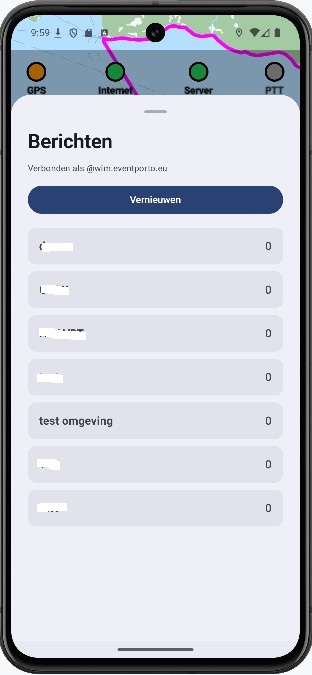
The app automatically arranges the connection to the messaging service using your normal EventPorto account. You do not need a second account or additional technical settings.
9.1 Rooms
The first screen shows the available message rooms. Tap a room to open the conversation.
Use Refresh to retrieve the room list again.
9.2 Unread messages
The number of unread messages is tracked for each room.
The total number of unread messages can also be shown next to Messages in the bottom navigation and in the title of the messages panel, for example Messages (3).
When you open a room, received messages in that room are marked as read.
9.3 Sending a message
Open a room and type your message in the input field at the bottom.
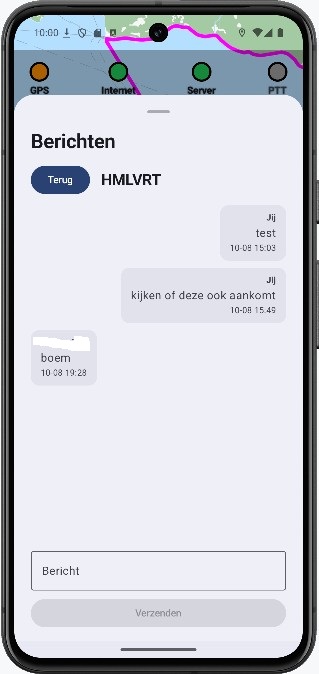
When a conversation is open, the input field remains at the bottom of the messages panel and is kept above the Android keyboard.
After you send it, the message appears in the conversation.
9.4 New message in an open room
When a new message arrives while you have that room open, the message view moves to the newest message so you can continue following the conversation.
9.5 Popup for an incoming message
The administrator can configure each message room so that new incoming messages also appear as a popup over the map.
The popup can show the room name, sender and message text. The administrator configures how long the popup remains visible.
Your own sent message does not trigger an incoming popup for you.
9.6 Message security
EventPorto secures messages automatically. As a user, you do not need to manage additional settings or keys.
9.7 Messages with a poor connection
Received messages are stored locally so that message history that has already been retrieved can remain available.
An outgoing message is stored locally first. If sending temporarily fails, the message can remain queued and be sent again later when the connection allows it.
10. Personal tracking
Open Tracking from the bottom navigation bar.
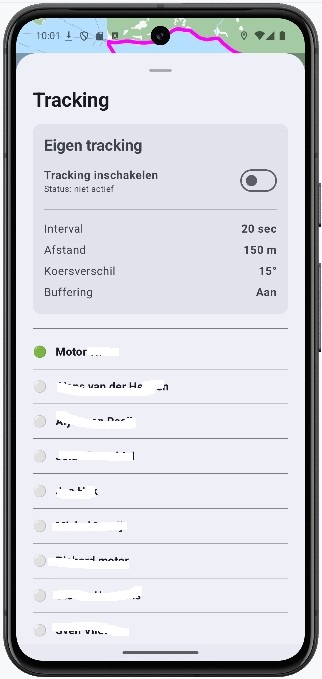
When the administrator has enabled personal tracking for your account, you can turn this feature on.
During personal tracking, the app selects GPS positions and shares them with EventPorto. The administrator determines how often and under which conditions a new position is sent.
You normally do not need to change these technical settings yourself.
10.1 Permissions
When you start tracking, Android may request location permission and, depending on the Android version, notification permission.
Personal tracking cannot start without the required location permission.
10.2 Temporarily no internet
When permitted for your event, selected position data can be stored locally when it cannot be sent temporarily. Once the connection is restored, this data can still be processed.
11. Maps
Open Maps from the bottom navigation bar.
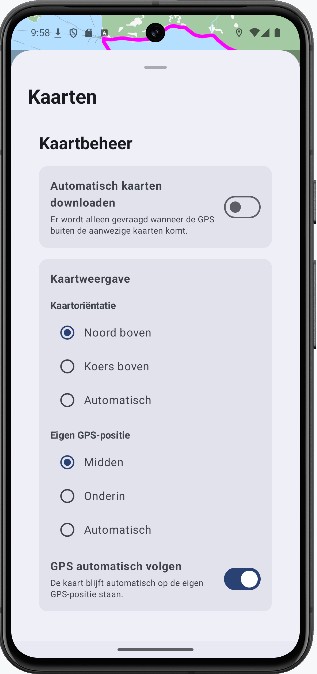
EventPorto uses maps that can be stored locally on the device. This allows the map to remain usable without an active internet connection, provided that the required map areas are already available on the device.
11.1 Downloading maps automatically
Use Download maps automatically to choose how the app handles missing maps.
When this option is enabled, missing maps for the visible area can be downloaded automatically.
When this option is disabled, maps are not downloaded automatically every time you move to a different map area. The app can still warn you when your GPS position moves outside the available maps.
11.2 Available maps
Under Available maps, you can see the maps that are stored locally. Multiple map files can work together to cover the required area.
11.3 Online catalogue
Under Online catalogue, the app displays the maps that are available through EventPorto.
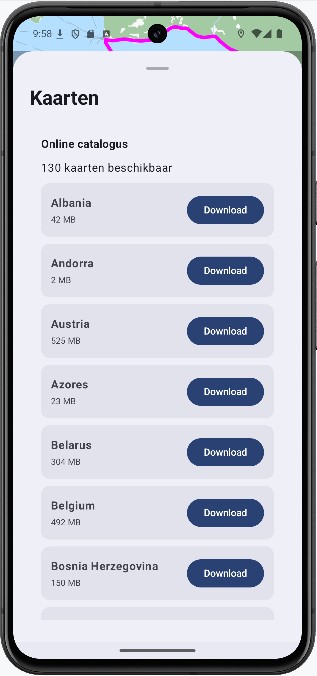
You can download maps manually. Progress can be shown during a download, and the download can be cancelled.
Use Reload catalogue to refresh the list of available maps.
An internet connection is required to retrieve the catalogue and new map files.
12. Settings
Open Settings from the bottom navigation bar.
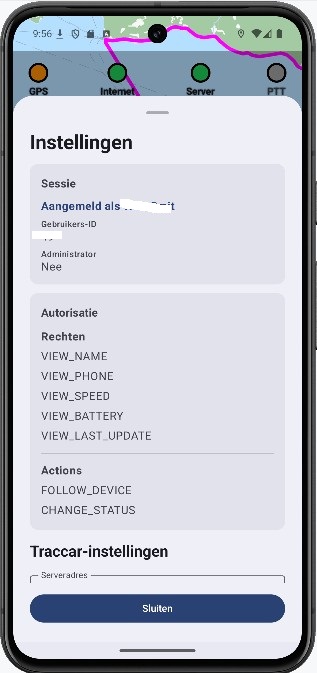
Here you can find:
- the current connection status;
- the EventPorto server address;
- username;
- password;
- information about the permissions and features available to your account.
The permissions list is especially useful when a particular feature or information field is not visible. The administrator can use it to check whether your account has been given the intended capabilities.
Only change the server address or sign-in details when you have received the correct information from the EventPorto administrator.
13. Status indicators
Above the map, EventPorto shows status information for GPS, Internet, Server and PTT.
The server status may change temporarily while the connection is being restored, without requiring you to sign in again.
For the server connection, the current app generally uses the following colours:
- green: fully connected;
- yellow: connecting or recovering automatically;
- orange: a recovery attempt failed, but the app continues to retry;
- red: no valid configuration or sign-in, or an error from which automatic recovery is not possible.
When the internet connection is temporarily unavailable, it is normal for the server indicator not to remain green.
14. Use without internet
EventPorto is designed for conditions in which mobile coverage may be temporarily unavailable.
When the internet connection is lost after data has already been loaded, the most recently valid operational data remains available. In the current app, this includes:
- maps stored locally;
- the loaded route and tracks;
- route points and waypoints;
- most recently known participants and vehicles;
- most recently known positions;
- the operational table;
- the ability to tap existing symbols on the map;
- messages stored locally;
- messages waiting to be sent;
- temporarily stored personal position data when this feature is active.
Data that has not previously been retrieved cannot, of course, be loaded from the server without an internet connection.
14.1 The connection returns
When the internet connection returns, EventPorto automatically tries to restore the connection and current data.
After a normal temporary network outage, you do not need to sign out, reinstall the app or re-enter the stored server settings.
Once recovery succeeds, the available groups, participants, vehicles, positions and other current data are updated again.
15. Common problems
I cannot see a particular participant or vehicle
First check whether other participants or vehicles are visible. If only one or a few are missing, this may be related to your account settings and access permissions.
Contact the EventPorto administrator if your role requires access to the missing object.
I see less information than another user
This can be normal. The administrator determines which information you may view, such as a telephone number, speed, battery status or most recent update.
Follow me is missing
The feature is only offered when your account has permission to use it.
Change status is missing
This feature also depends on your permissions. Contact the administrator if you are expected to change operational statuses.
Battery status is missing
A battery entry is only shown when you have permission to view it and the relevant device actually supplies usable battery data.
No route appears
The administrator may have linked the route to an event and a time period. Check whether the event is already active and whether other users can see the same route.
The map is blank outside my current area
The required local map area may be missing. Open Maps and check the available maps and the online catalogue.
Messages shows no rooms
First check whether EventPorto is connected to the server. Message rooms are linked to user groups by the administrator. If you do not have access to a message room, it may be completely absent.
A message is not sent immediately
During a temporary connection failure, the message can remain queued locally. Restore the internet connection first; the app can then try to send it again.
The internet is unavailable but I still see old positions
This is intentional. During a temporary outage, EventPorto retains the most recently valid operational data. Remember that these positions are no longer being updated in real time.
The server indicator is yellow or orange
The app is probably trying to restore the connection automatically. Manual sign-in is normally not required during a temporary network or server outage.
The server indicator remains red
Check the internet connection and settings. If the information appears to be correct, contact the EventPorto administrator.
16. Quick start during an event
For normal use during an event:
- Start EventPorto before departure.
- Check that the map is visible.
- Check your own GPS position.
- Check the internet and server status.
- Check that the expected route has loaded.
- Open Table and check that the expected operational objects are present.
- Open Messages and check that the correct groups are visible.
- Enable Tracking when your own position must be shared.
- Use a popup for detailed information, Follow me or status changes when you have the required permissions.
- If the internet is temporarily unavailable, continue using the locally available map and data and allow the app to restore the connection automatically.
17. Help and administration
This manual is intended for users of the EventPorto app.
For changes to your account, groups, visible participants or vehicles, routes, message rooms, tracking or user permissions, contact the EventPorto administrator.
18. About this manual
This user manual is updated when the features or operation of the EventPorto app change.